Watch the 1-minute demo
See the four steps below in action: upload, type your hypotheses, calculate, and copy your results.
Paper questionnaires? Type them in with Data Entry
If your answers are on paper, or you have no Excel file yet, open Data Entry. It builds the data sheet for you in the right layout, with codes and answer labels, and it is free. Watch the 2-minute demo first:
Step 1: Set up your questions
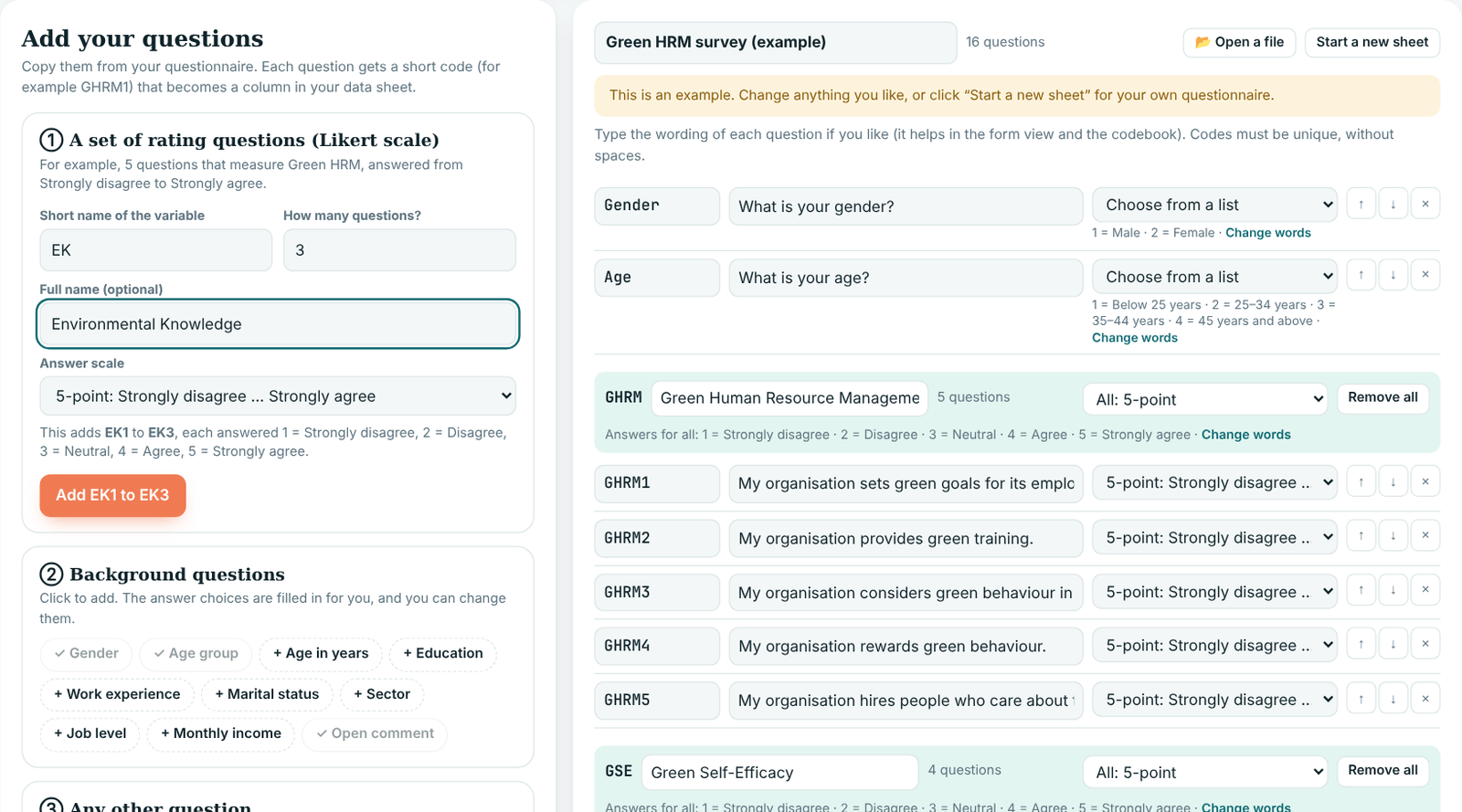
- Add a set of rating questions. Type a short name such as GHRM, how many questions it has (for example 5), and the full name if you like. Choose the answer scale: 5-point or 7-point, Strongly disagree to Strongly agree (frequency, satisfaction and importance scales are there too). Press Add, and GHRM1 to GHRM5 are created with their answer codes.
- Add background questions with one click: gender, age group, age in years, education, experience, marital status, sector, job level, income, or an open comment.
- Ready-made questionnaires: for computer science, IT and information systems research, type the name of your system (for example “the university LMS”) and add the TAM, UTAUT or System Usability Scale (SUS) questions in one click. The sources to cite are shown, the hypotheses are sent to PLS-SEM for you, and the SUS usability score (0–100) is calculated in step 3.
- Any other question: type a code and choose the type of answer: a list of choices, a number, a written answer, or a rating scale.
- Check the list on the right. Type the wording of each question if you like, change the answer words with Change words, and move questions up or down with the arrows.
Step 2: Enter the responses
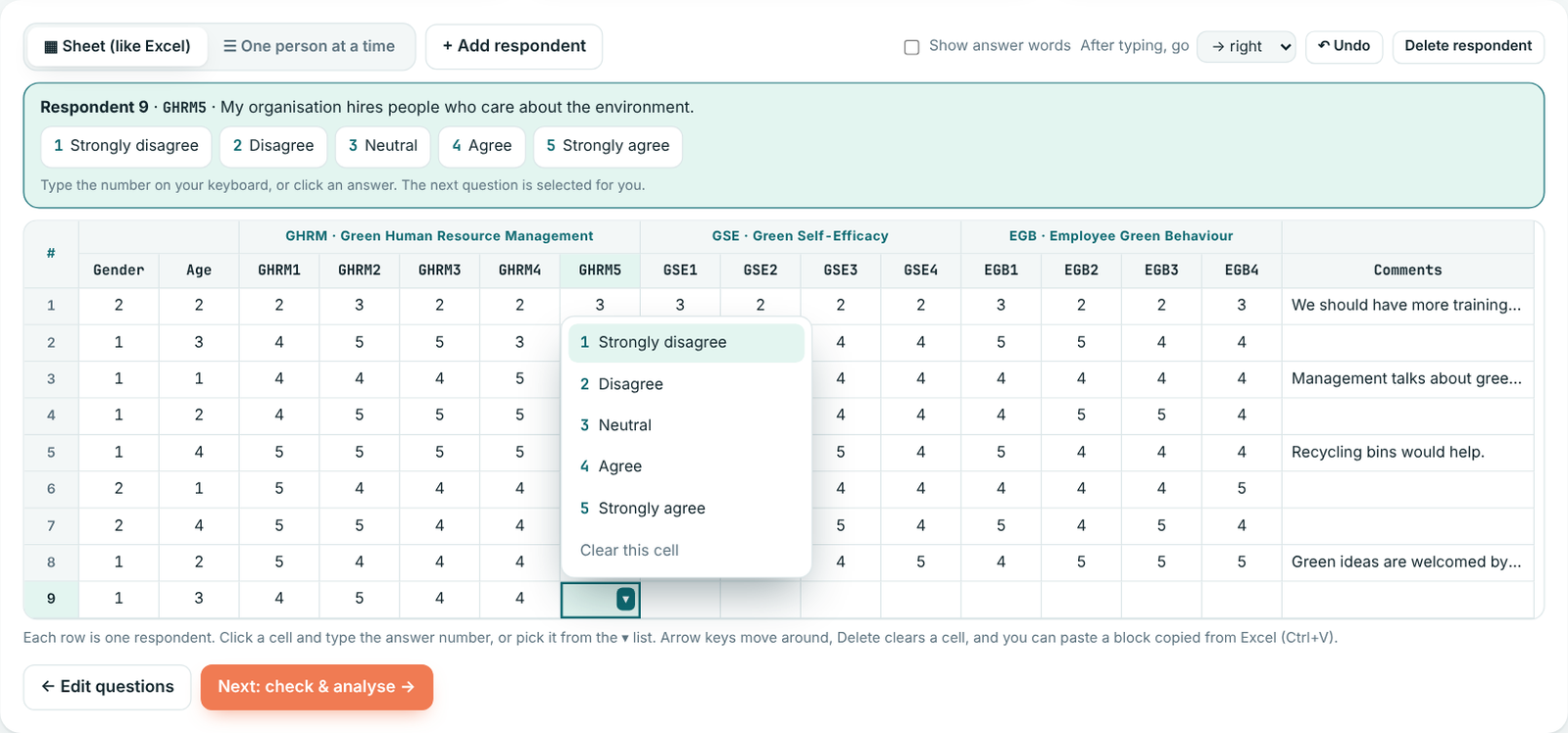
- One row is one respondent. Click the first empty cell and press the answer number on your keyboard. The next question is selected for you, so you can type a whole questionnaire without touching the mouse.
- Not sure of the code? The green box above the sheet shows the question and every answer with its number. You can click an answer there, or click the ▾ in the cell to pick from a list.
- Mistakes turn red, for example an 8 on a 5-point scale. Press Delete to clear a cell, or Undo (Ctrl+Z).
- Already have some answers in Excel? Copy them and press Ctrl+V in the sheet.
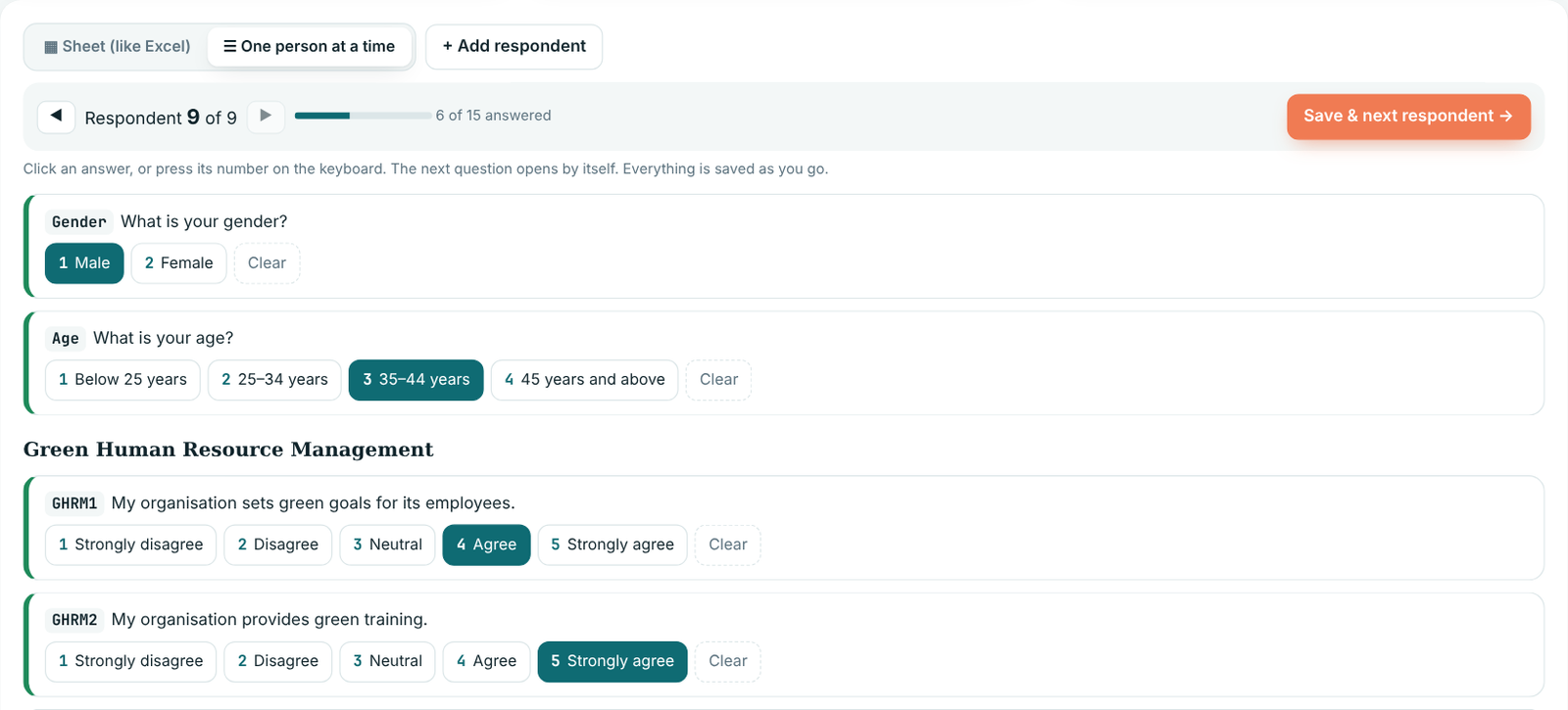
Prefer to fill in each questionnaire like the paper form? Press One person at a time. Click an answer or press its number, and the next question opens by itself. Press Save & next respondent when one questionnaire is done. On a phone this view opens by default.
Step 3: Check and analyse
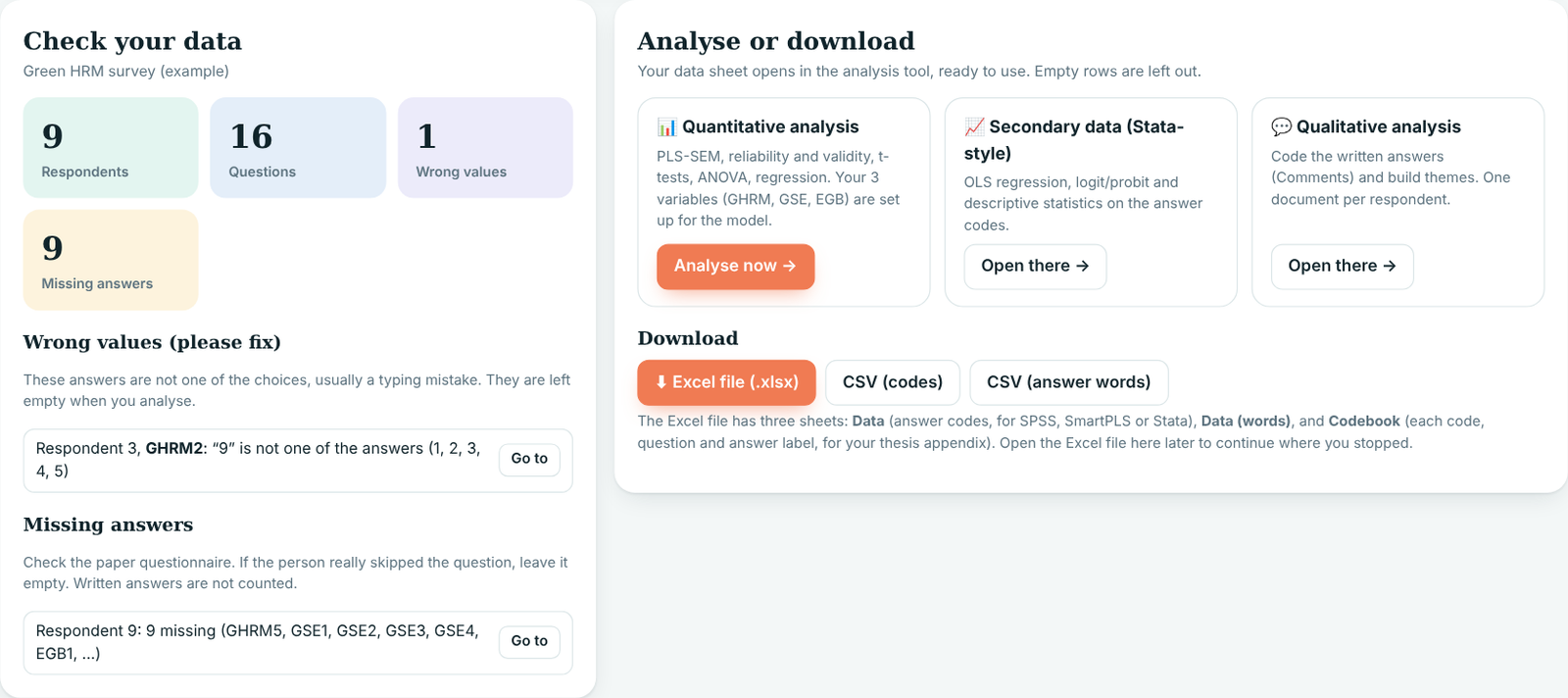
- Fix what the tool finds: wrong values, missing answers, questionnaires typed twice, and people who gave the same answer to every question. Press Go to to jump straight to the cell.
- Analyse now opens your data in Quantitative Analysis with your variables (GHRM, GSE …) already grouped for PLS-SEM. You can also send it to Secondary Data or, for written answers, to Qualitative Analysis.
- Download Excel to keep a copy. It has the answer codes, the answer words, and a Codebook sheet for your thesis appendix. Open that Excel file in Data Entry later to continue where you stopped. When you are signed in, your sheet is also saved to your account.
Prepare your Excel file
You can make this file in Excel, or type your questionnaires in with Data Entry. Most problems come from the file layout, so check these four rules before uploading.
- One row for each respondent. Row 1 is for the column names.
- One column for each question (item). Put the answers as numbers, for example 1 to 5 or 1 to 7.
- Name the items of one variable with the same short name plus a number: GHRM1, GHRM2, GHRM3. The tool then groups them into the variable “GHRM” automatically.
- Demographics can be words or numbers: Gender (Male/Female), Age, Bank, Experience.
| A | B | C | D | E | F | G | H | |
|---|---|---|---|---|---|---|---|---|
| 1 | GHRM1 | GHRM2 | GHRM3 | EGP1 | EGP2 | EGP3 | Gender | Age |
| 2 | 5 | 4 | 5 | 4 | 4 | 5 | Female | 29 |
| 3 | 3 | 3 | 4 | 3 | 2 | 3 | Male | 34 |
| 4 | 6 | 7 | 6 | 6 | 7 | 6 | Female | 41 |
Upload your data
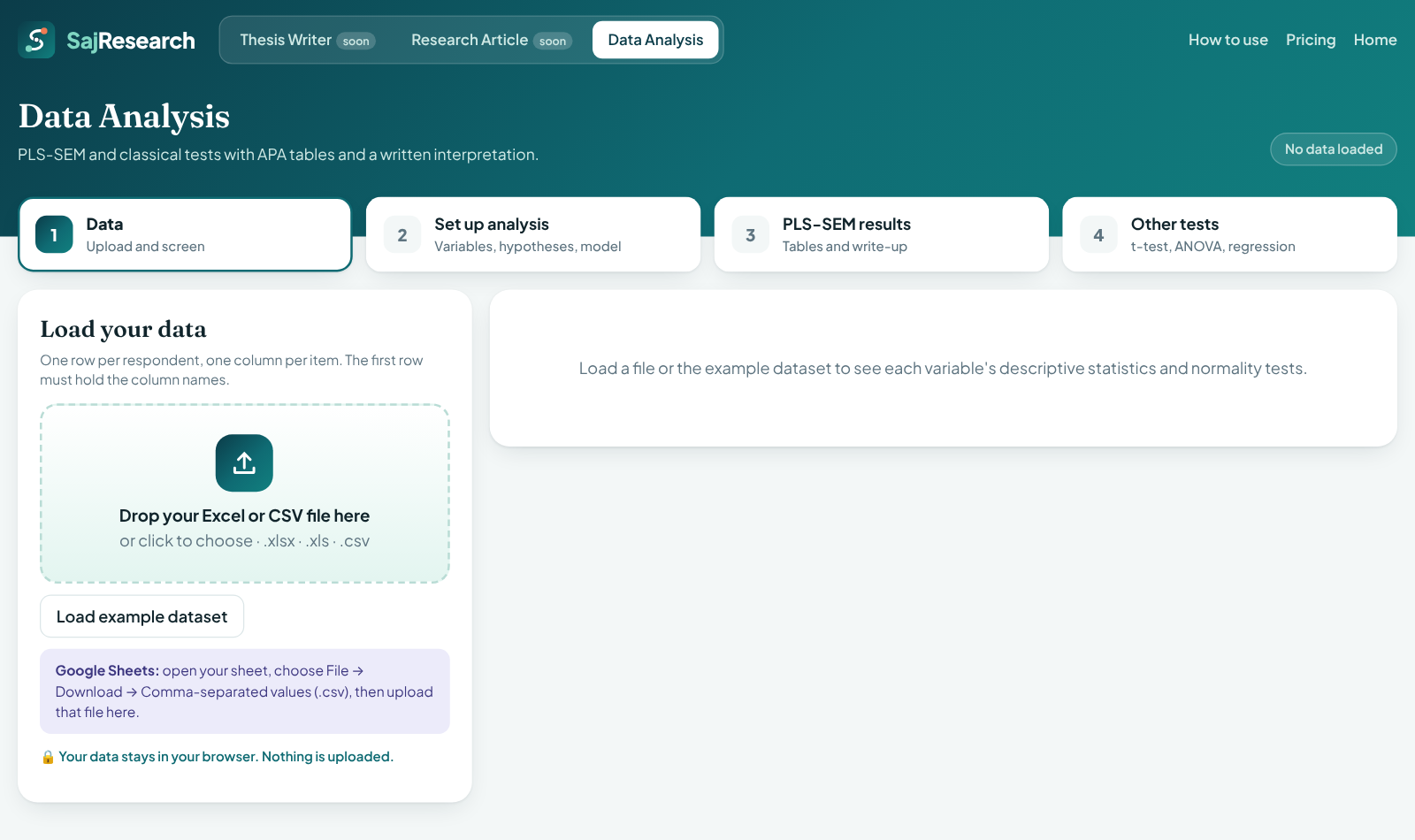
Open the tool and drop your file in the upload box. Excel (.xlsx, .xls) and CSV both work. Using Google Sheets? Choose File → Download → CSV first.
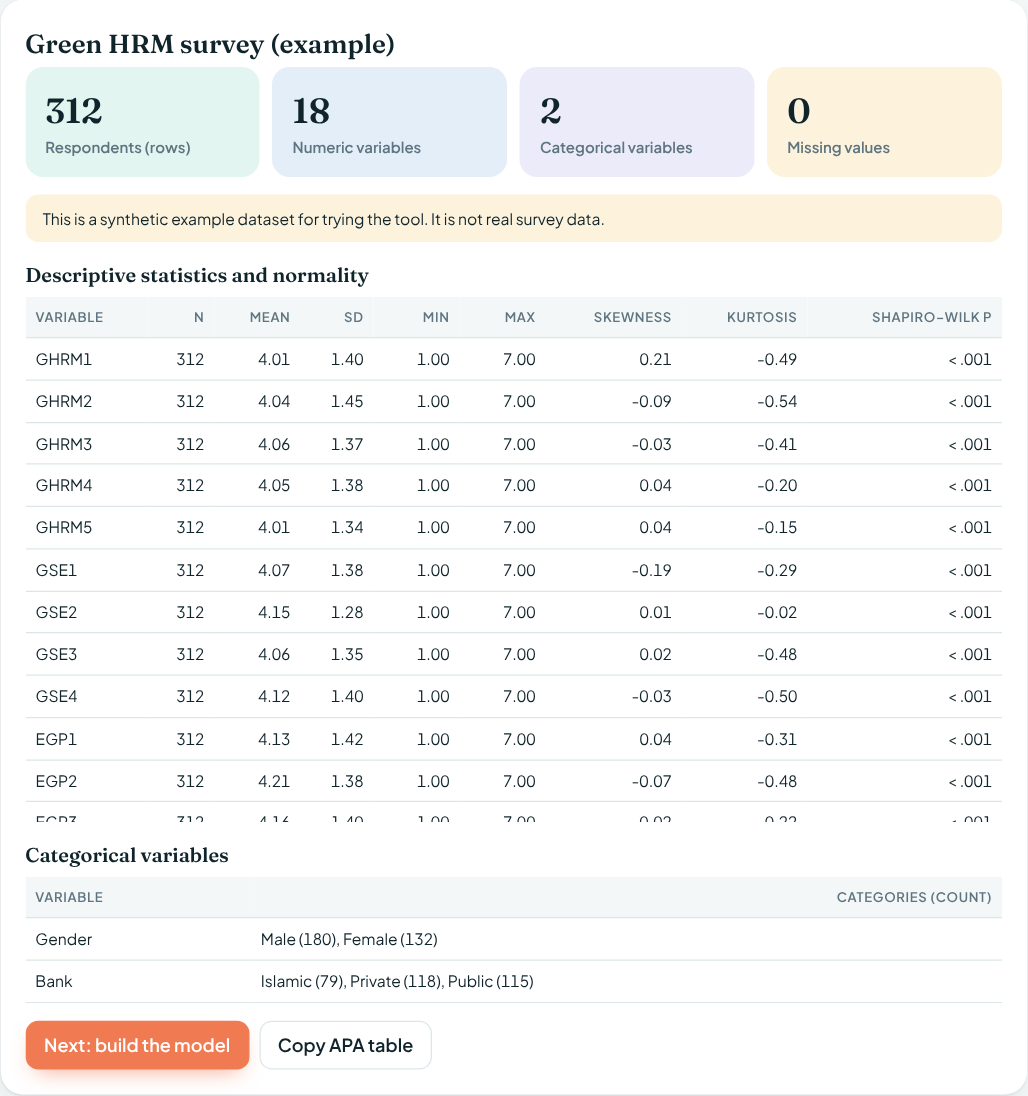
What you see after uploading
The tool counts your respondents and variables, checks missing values, and gives every item’s mean, SD, skewness, kurtosis and Shapiro–Wilk normality test. Press Copy APA table to paste this table into Chapter 4.
Set up your analysis
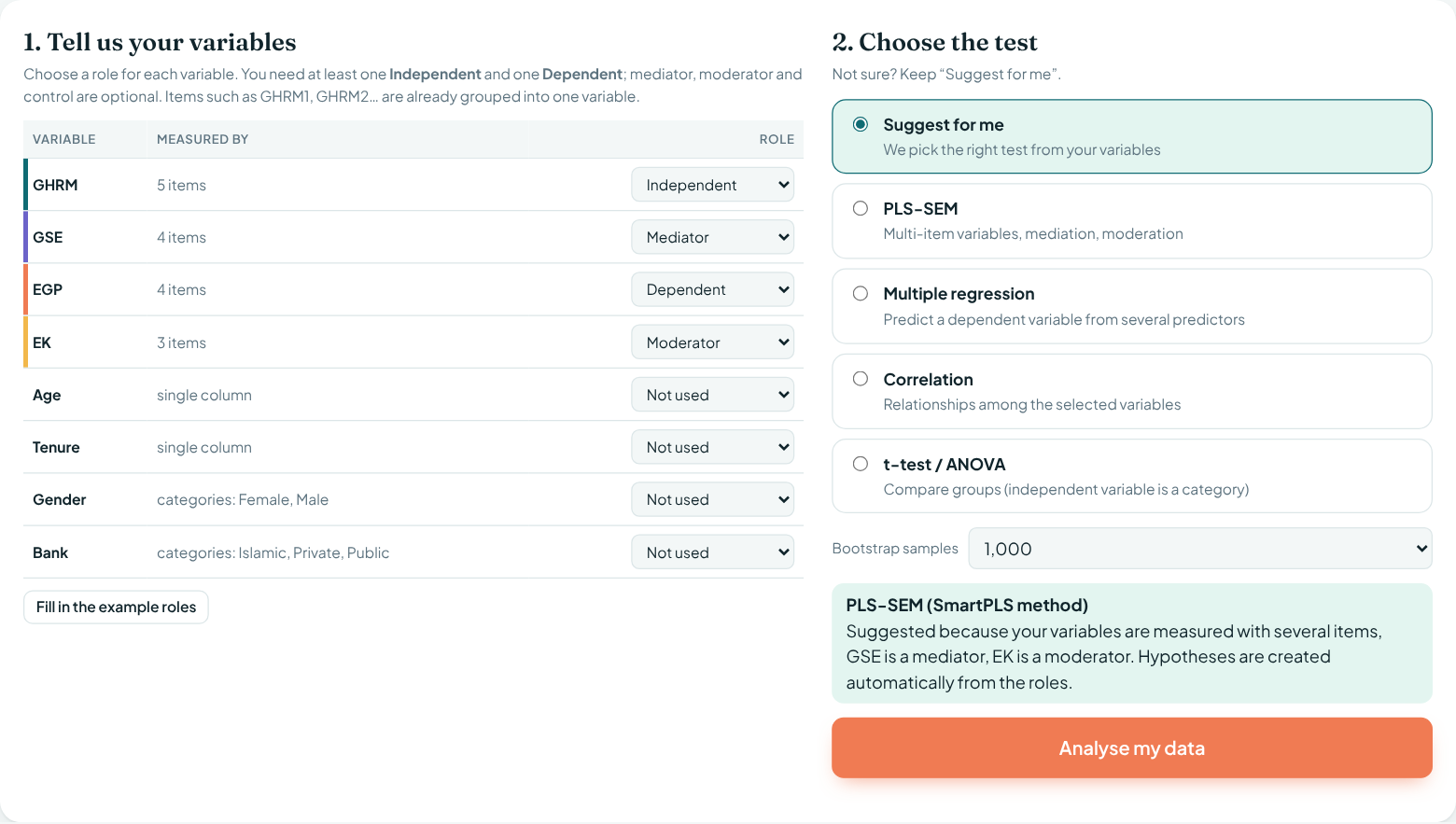
Go to step 2, Set up analysis. There are three ways to do it. Quick analysis is the easiest and is open by default.
Quick analysis: tell us the role of each variable
- In the list, choose a role next to each variable you want to use. Leave the rest as “Not used”.
- Keep “Suggest for me” as the test, or choose one yourself.
- Press Analyse my data. That’s it.
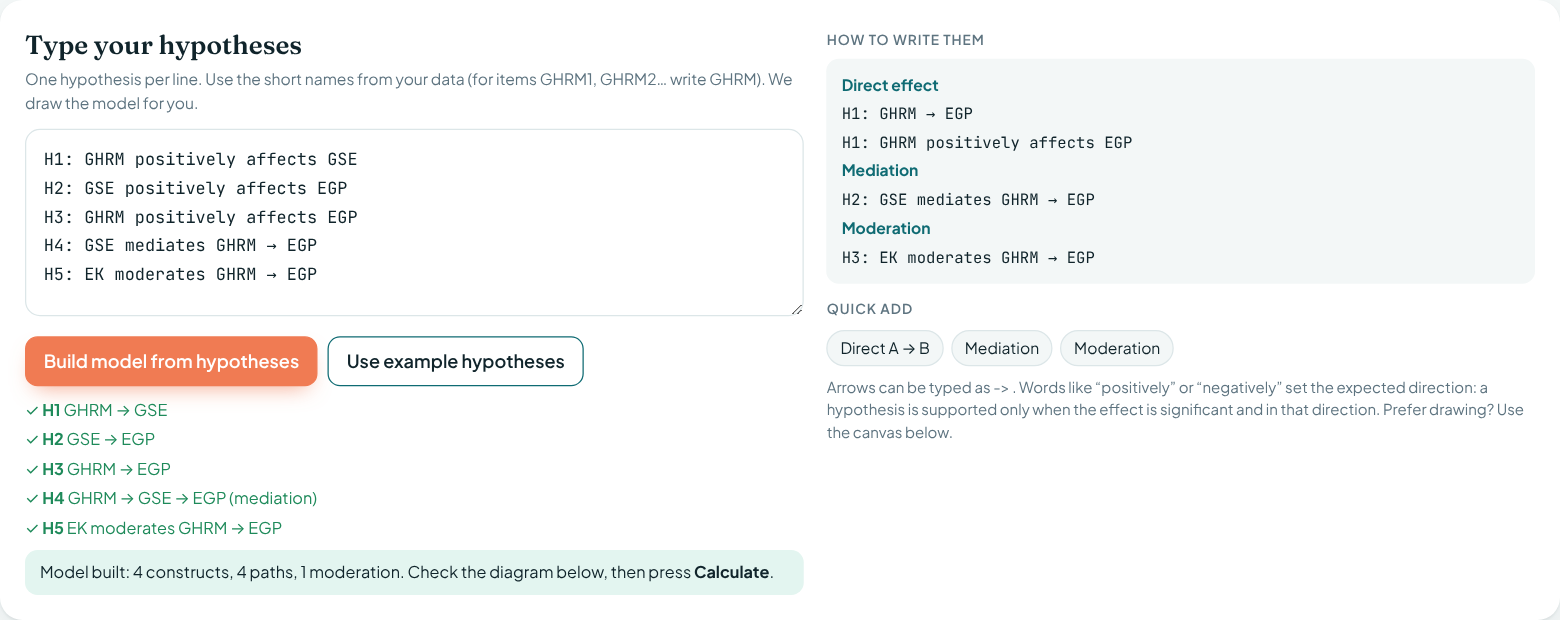
Or: type your hypotheses
Prefer to use your own hypothesis numbers? Choose Type hypotheses and write one per line, then press Build model from hypotheses.
Or: draw it yourself
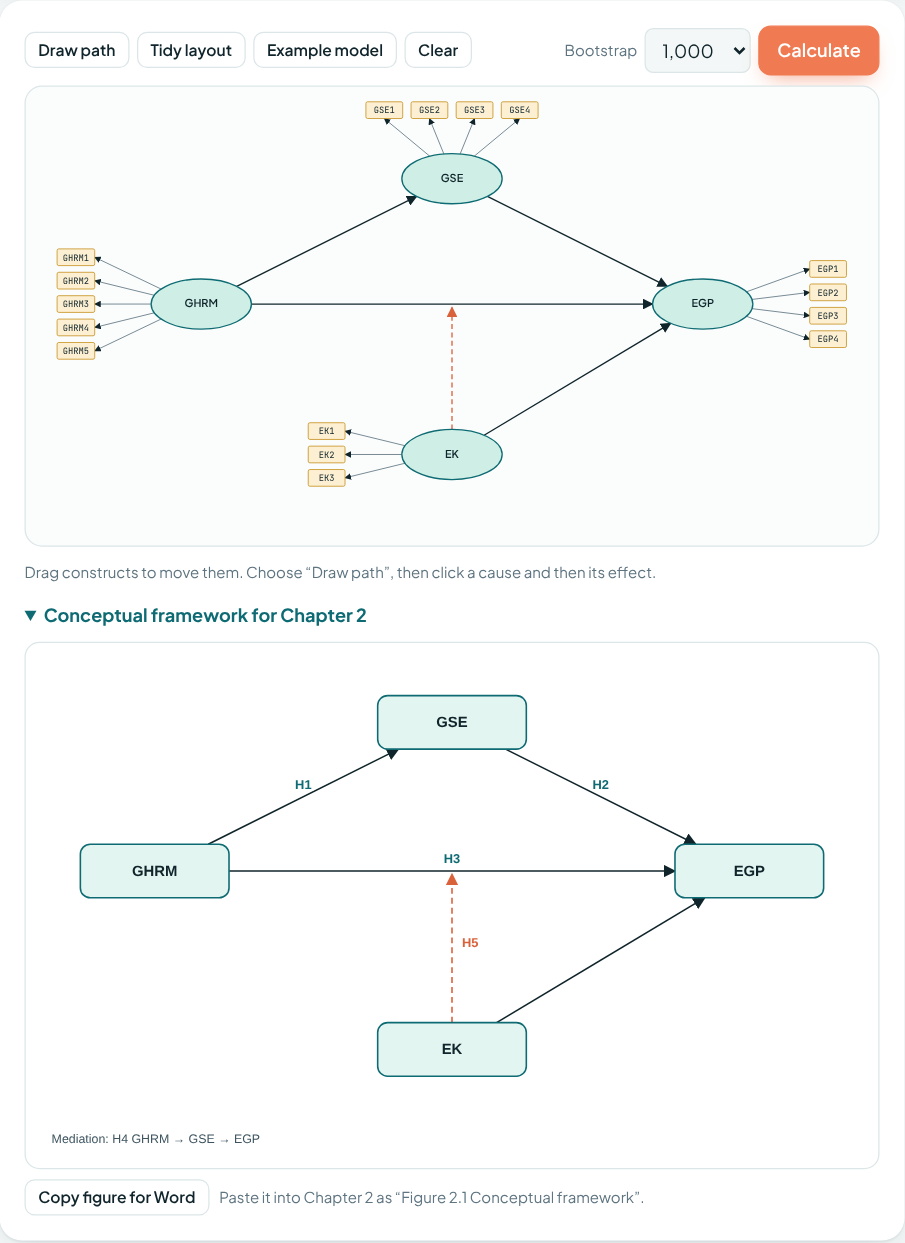
Choose Draw model for a SmartPLS-style canvas. Press Auto-group by prefix, then Draw path and click a cause and then its effect. Drag the circles to arrange them.
Bonus: your conceptual framework
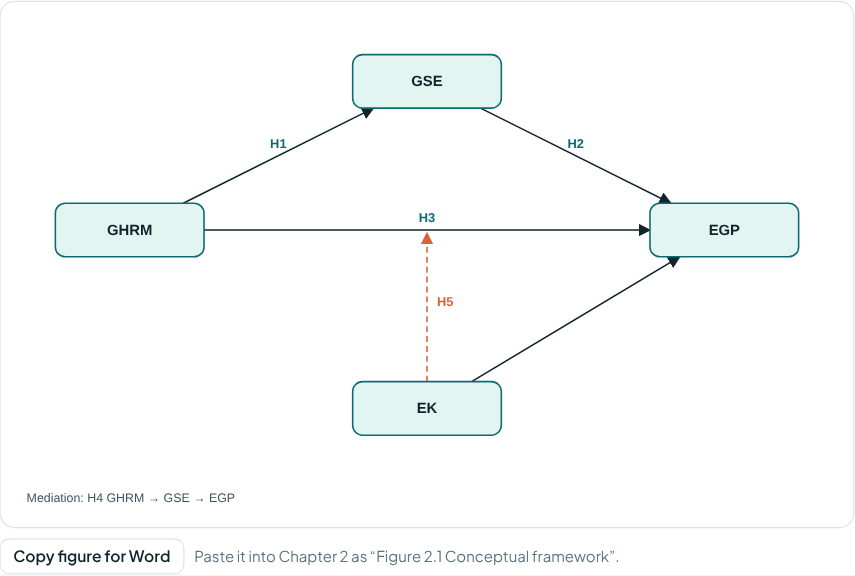
Below the canvas you get a clean framework figure with your hypothesis labels. Press Copy figure for Word and paste it into Chapter 2.
Read and copy your results
Results open automatically. The coloured tiles at the top give the headline: variance explained (R²), how many hypotheses are supported, and the highest HTMT.
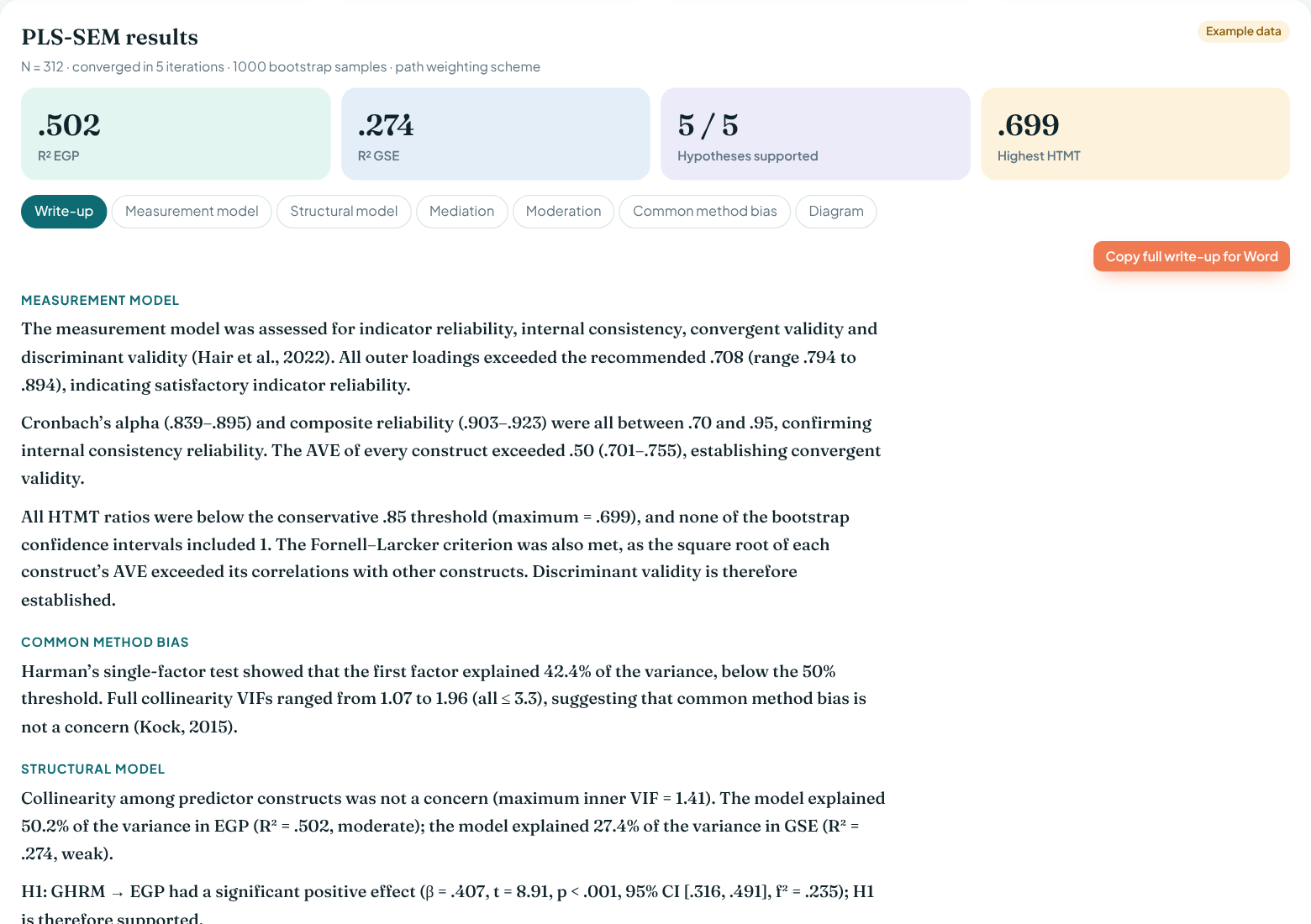
The tabs, in the order of a Chapter 4
- Measurement model: loadings, Cronbach’s α, composite reliability, AVE, Fornell–Larcker, HTMT and cross-loadings.
- Structural model: path coefficients with t, p and confidence intervals, R² and f².
- Mediation and Moderation: indirect effects with the type of mediation, and simple slopes.
- Common method bias: Harman’s test and full collinearity VIF.
- Diagram: your model with the estimates on it.
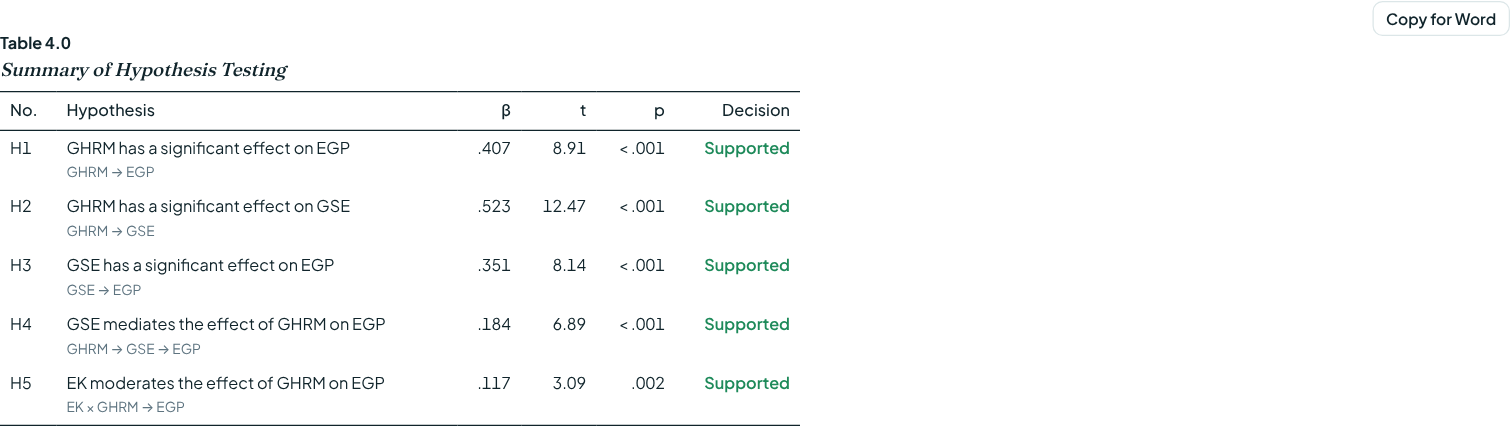
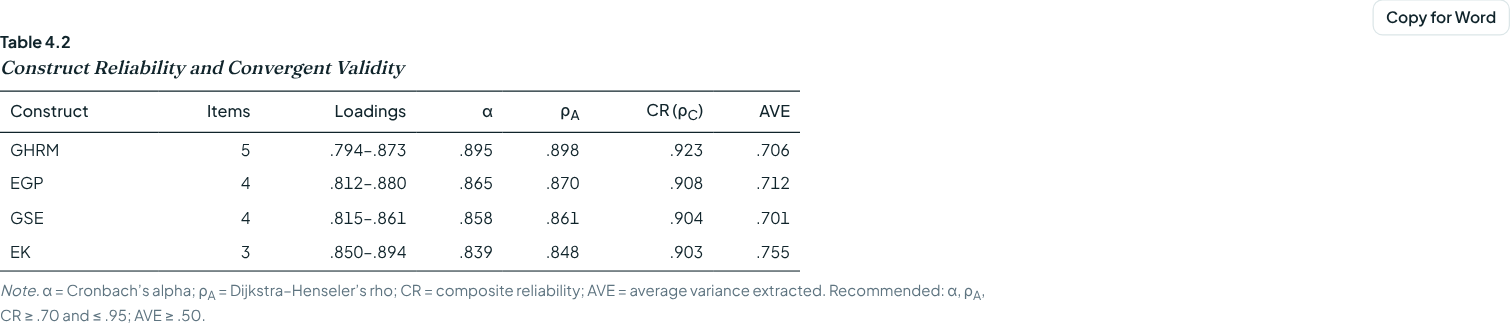
Every table has a Copy for Word button. Paste into Word and it keeps the APA format: table number, italic title, and horizontal lines only.
Other tests (optional)
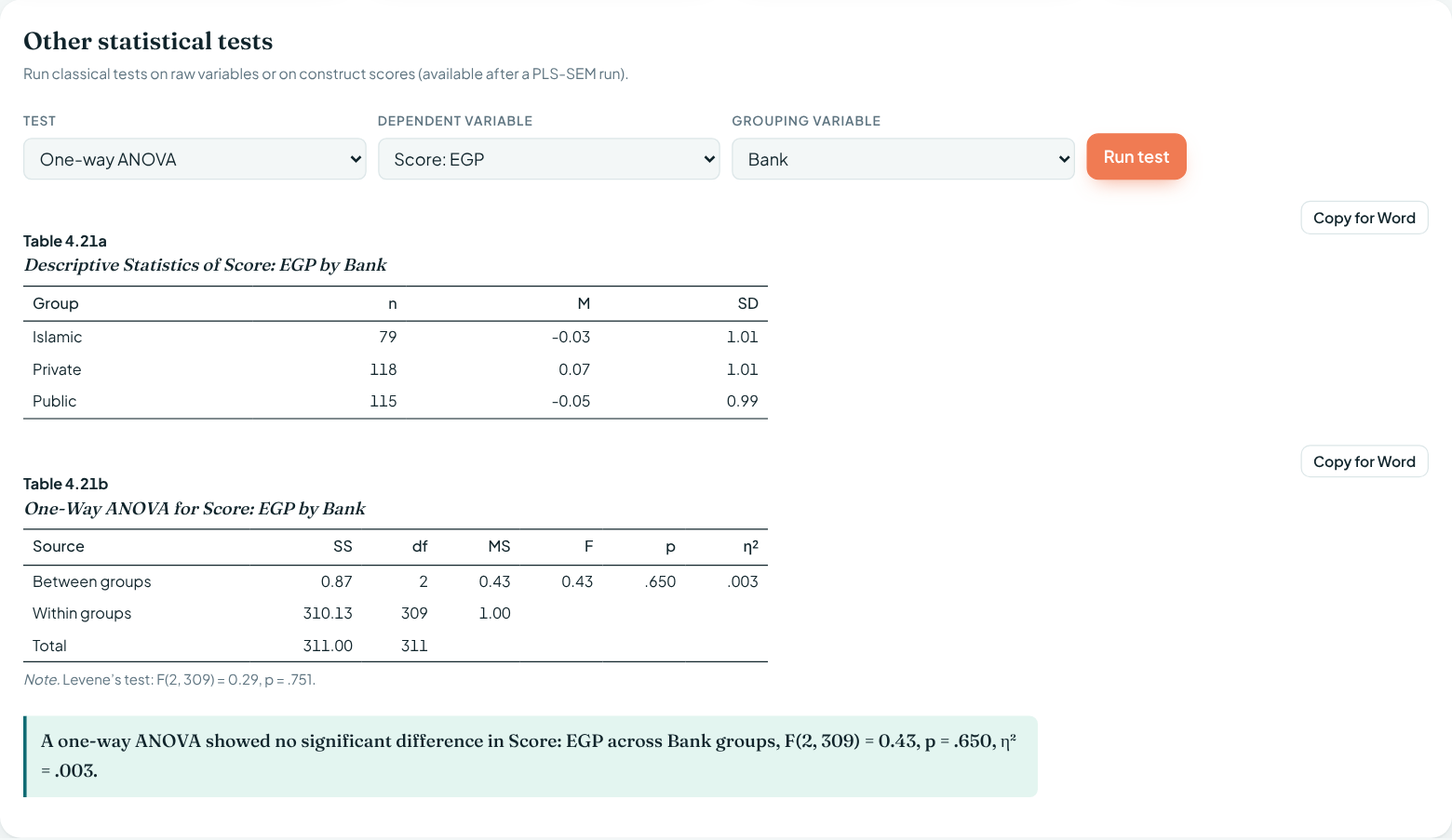
Step 4 runs classical tests: independent and paired t-tests, one-way ANOVA with Tukey post hoc, two-way ANOVA with an interaction plot, chi-square, correlation and multiple regression. When scores are not normal or groups are small, use the rank-based tests: Mann–Whitney U, Wilcoxon signed-rank, and Kruskal–Wallis with Dunn post hoc. Each test gives an APA table, a chart you can copy into Word, and a draft sentence. After a PLS-SEM run you can also test construct scores, for example whether performance differs across banks.
Starting your literature review? Find the top cited papers
Open Top Cited Papers and type your topic in a few words, for example green HRM employee performance. You get the 50 most-cited papers of the last five years that match your topic, with the journal, citation count and a free PDF link when one exists. It is free.
- Search: use 2 to 5 key words. Put a phrase in quotes to keep it together. Change the years, choose research articles or review papers, or tick Free PDFs only.
- Read and save: open each paper, read the abstract, and press Save for the ones you will use. The side panel shows the journals that publish most on your topic.
- Export: copy the APA 7 reference list into Word, or download RIS or BibTeX for Mendeley, Zotero or EndNote.
Interviews? Use Qualitative Analysis
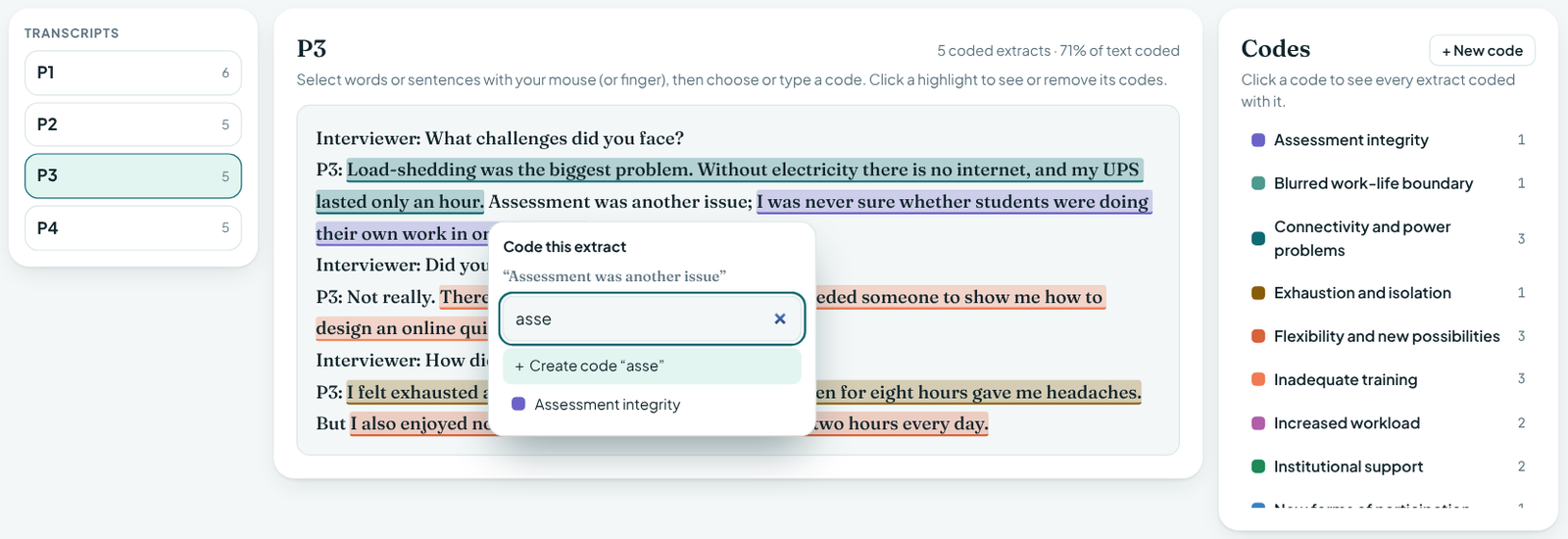
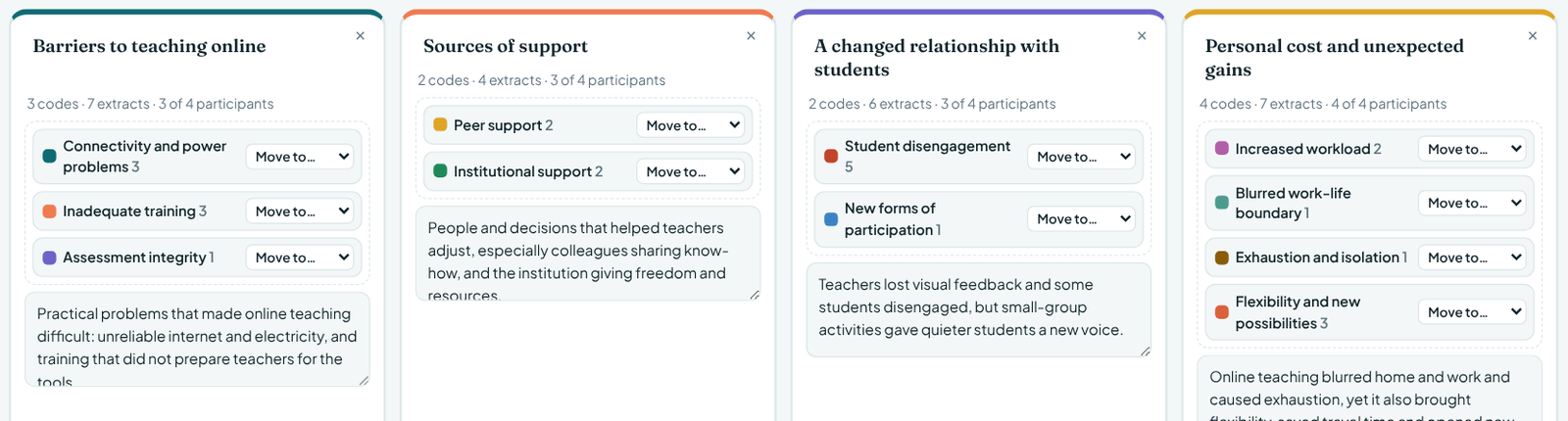
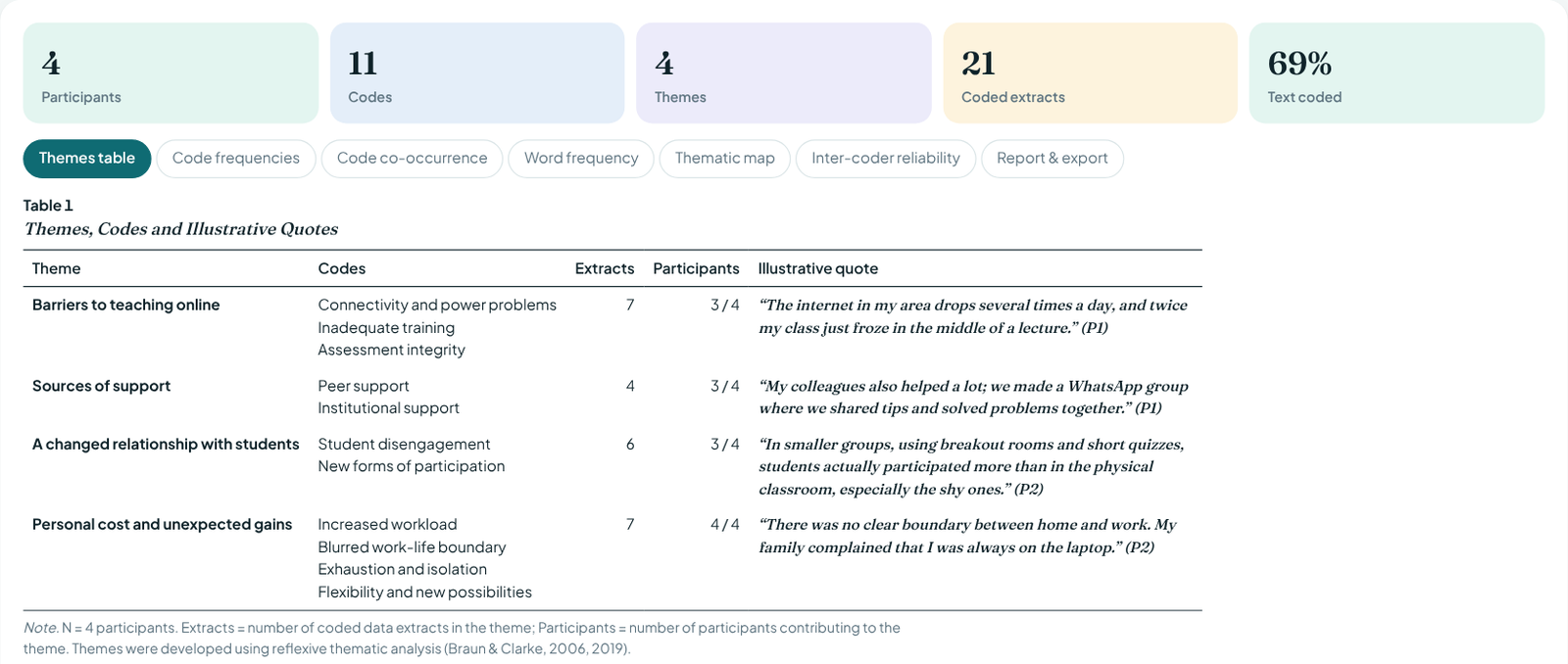
For interview or focus-group data, open Qualitative Analysis. It follows Braun and Clarke's six phases of thematic analysis, the method most examiners expect. Press Load example project first to see a finished analysis.
- Transcripts: upload your interviews as Word, PDF or text files, one file per participant. Rename them P1, P2 and so on.
- Code: select a sentence with your mouse or finger, then type a code name or pick an existing code.
- Themes: drag related codes into themes, then write a short definition for each theme.
- Results: copy the theme table with quotes, download the thematic map, check inter-coder reliability (Cohen's kappa), and export a Word report or Excel workbook.
Secondary data? Use the Stata-style tool
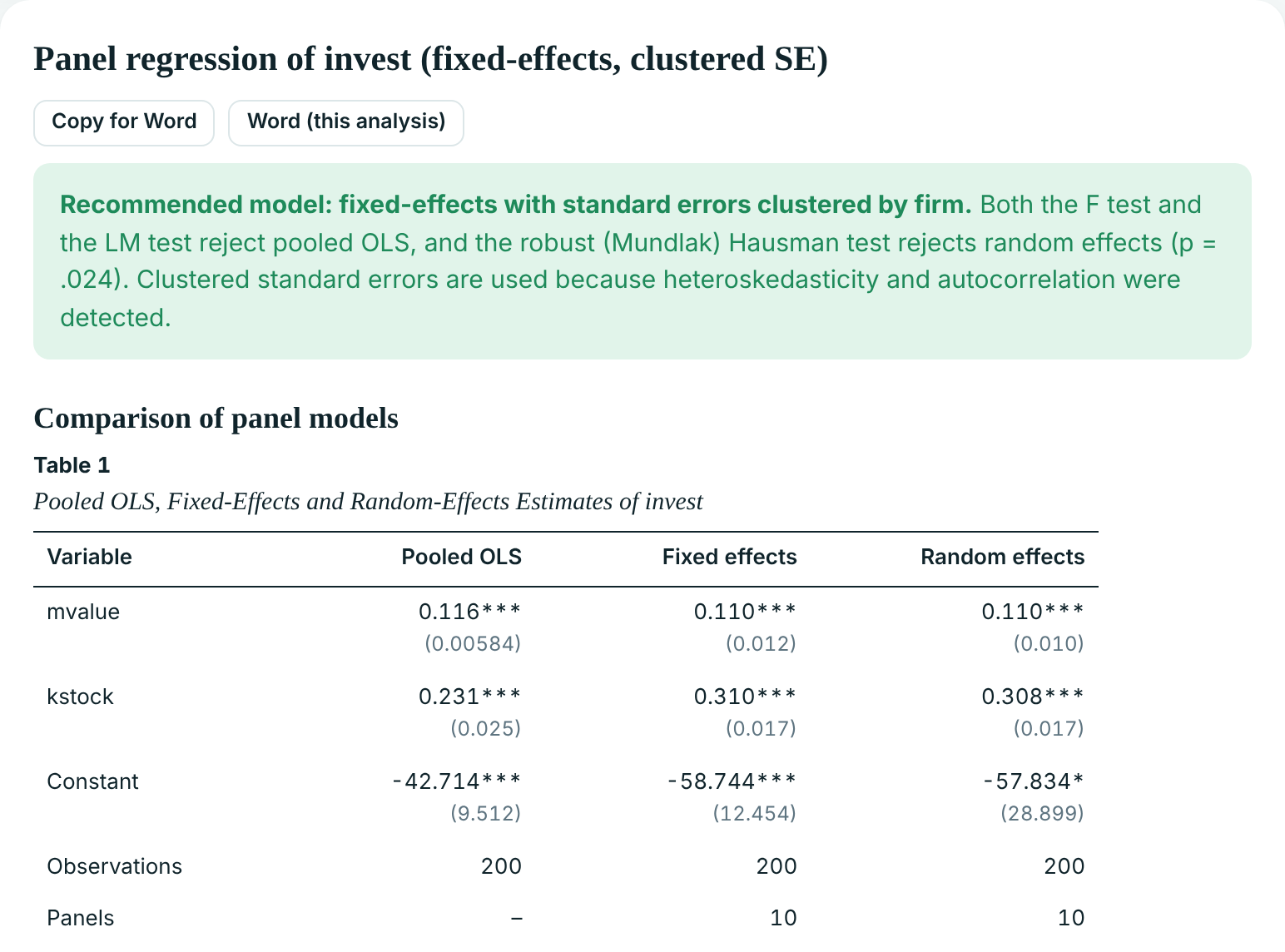
For data from annual reports, the World Bank, the State Bank or any database (firm-years, country-years), open Secondary Data. Press Load example panel data first: it is the Grunfeld data from Stata's manual, so you can compare every number.
- Data: upload Excel or CSV with one row per firm-year. Check that the tool found your panel ID (firm, country, bank) and year. Create logs, lags or differences if your model needs them.
- Analyse: choose Panel regression, pick Y and the X variables, and press Run. The tool estimates pooled OLS, fixed and random effects, runs the F, Breusch–Pagan LM and Hausman tests, checks heteroskedasticity, autocorrelation and multicollinearity, and recommends the right model. OLS, logit/probit, descriptives and unit-root tests are also there.
- Results: copy the APA tables and the write-up draft, download everything in one Word file, and download the Stata .do file. Your supervisor can run it in Stata and get the same results.
Common questions
Is it free?
Every new account gets one full analysis of their own data free, and you can practise on the example dataset as much as you like. The Thesis plan is PKR 4,900 for 3 months of unlimited use.
Is my data safe?
Yes. Your file is read inside your own browser and is never uploaded to our server.
How many bootstrap samples should I use?
1,000 is fine while you explore. Use 5,000 for the final results you report in your thesis, as recommended by Hair et al. (2022).
An item has a loading below .708. What should I do?
Items between .40 and .708 can stay if reliability and AVE are fine. If AVE is below .50, remove the weakest item from your Excel file (or from the construct in Draw model) and run again. Report which items you removed.
Are the results the same as SmartPLS?
SajResearch uses the same PLS-SEM algorithm as SmartPLS (path weighting scheme). Every statistic was checked against established statistical software (91 of 91 checks passed). Bootstrap p-values can differ slightly between any two runs because bootstrapping uses random resamples.
I need help with my file.
Email info@sajresearch.com and describe the problem. Please do not send personal data from respondents.
Ready to try it?
Start with the example dataset, then use your own file.